
Tutorials
How to Install an OCMOD Extension in OpenCart
OCMOD extensions in OpenCart are distributed as .ocmod.zip files.
Step 1: Upload and Install the Extension
- Log in to your OpenCart admin panel.
- Navigate to Extensions > Installer.
- Click the Upload button (blue icon with cloud).
- Select your
.ocmod.zipfile from your computer. - Wait for the upload to complete and the success message to appear. The OCMOD XML is now installed in the system.
Step 2: Clear and Refresh Modifications
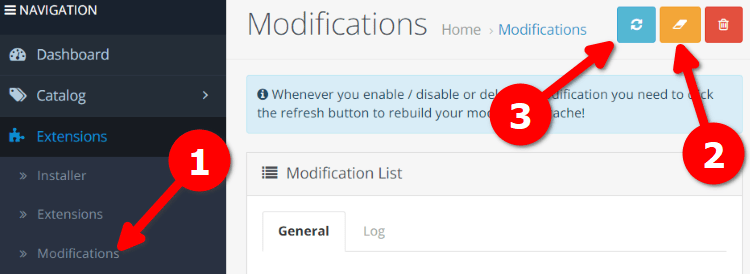
- Go to Extensions > Modifications.
- Click the orange Clear button.
- Immediately click the blue Refresh button (circular arrows icon) in the top right.
This sequence clears old modification data first and then parses all OCMOD XML files to regenerate the modified files in the system. A success message confirms the process is complete.
Critical: Always click the orange Clear button first, followed by the blue Refresh button. Do NOT click Clear last — your website will stay broken until you click Refresh.
Step 3: Install and Configure the Extension
- Go to Extensions.
- From the dropdown, choose the category that matches the extension you installed (for example, Payments, Shipping, Modules, etc).
- Locate the extension you uploaded.
- Click the green Install button.
- After installation completes, click the blue Edit button to open the extension's settings.
Tags
opencarttutorialocmodinstall